There are several errors some students make when typing. Some might appear to be OK, as they solve a formatting issue for the moment. Yet, when the document gets edited later, those tiny errors may mess up your layout.
The short answer:
Most are. If you type mroe instead of more, autocorrect will correct it, because there is no such word as mroe in English.
But if you type car instead of cart, since car is a legit word, Word will let it be. The same for spend instead of spent.
Most of your punctuation typing errors will pass unnoticed. And many of you got some bad typing habits when it comes to punctuation.
A lot of typing errors occur around characters you don’t even see on the screen: spaces, hard returns (Enter) and tabs. If these characters are invisible (or hidden, as Word calls them), how do you make them visible for correction?
To reveal those hidden characters, do this:
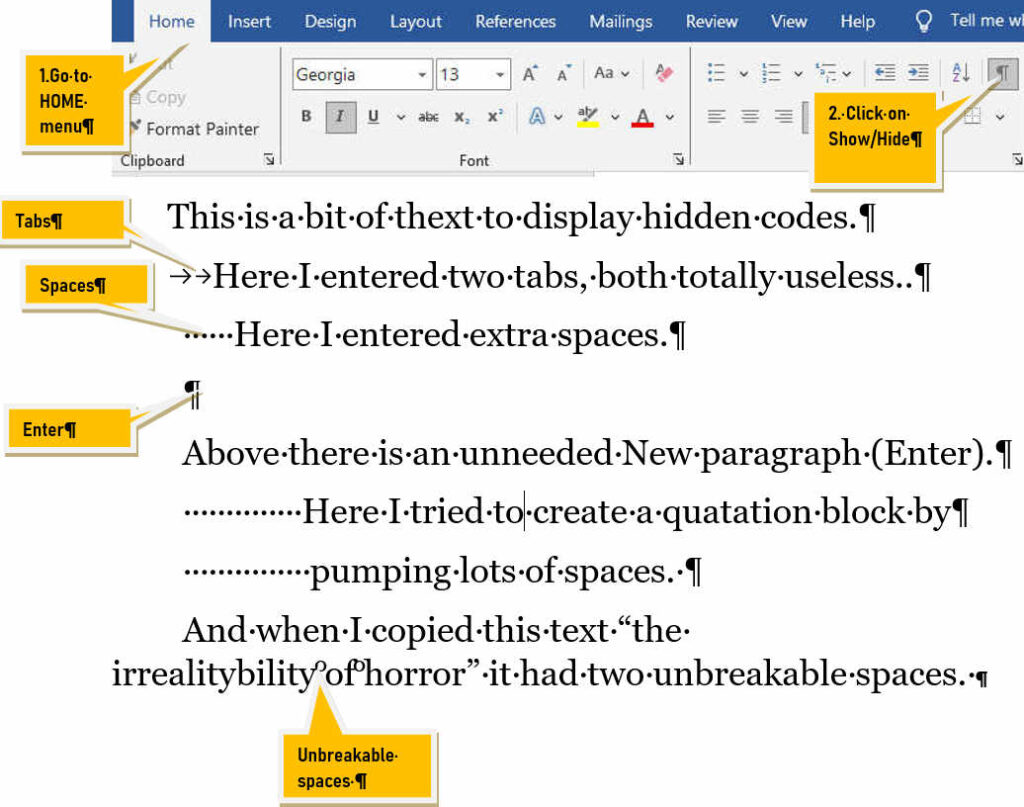
Once visible these signs can be deleted, if they cause trouble.
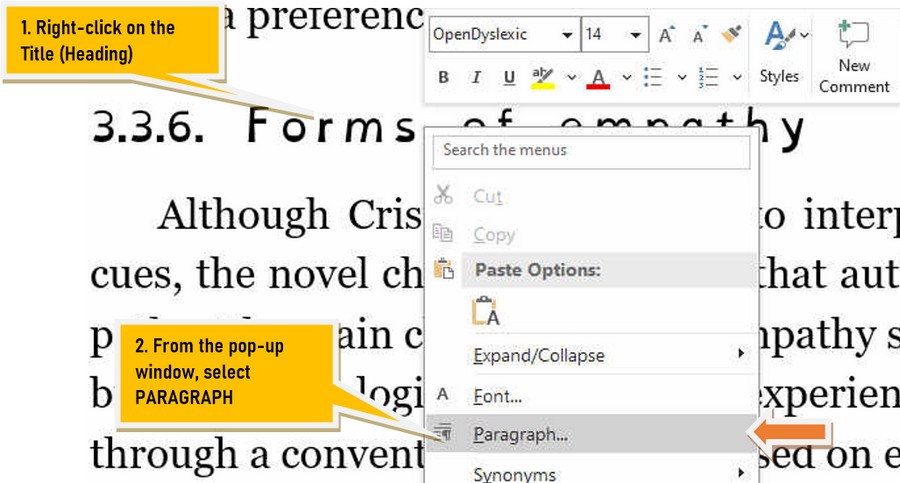
All the titles in our Template (Titlu1, Titlu2, etc) have been designed to include enough Space Before and Space After. You may verify that space by checking the Paragraph, like this:
In the Paragraph window that opens, go to the bottom. You can see that the Space Before is set to a number of points (pts), and so is Space After.
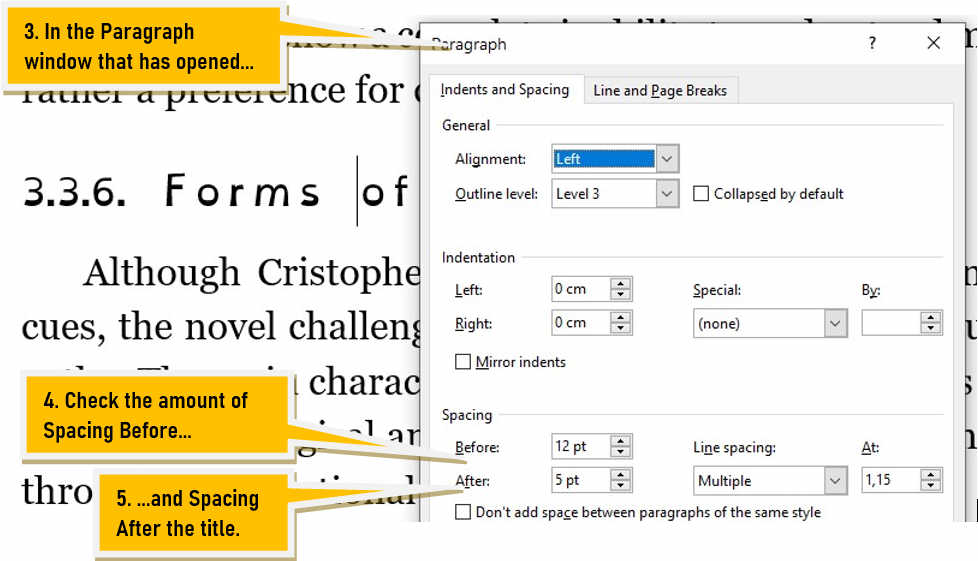
(Points refer to the size of fonts. So if your font is 12pt, a 6pt spacing is half a line, and an 18pt spacing is 1 1/2 line)
Note that the Spacing was designed to look well in print, not on your screen. On your screen you often feel like adding more spacing, which will turn out to be too much when printed.
And since you are in the Paragraph window, let’s check another essential feature of this Title (Heading): Keep with next. Go this way:
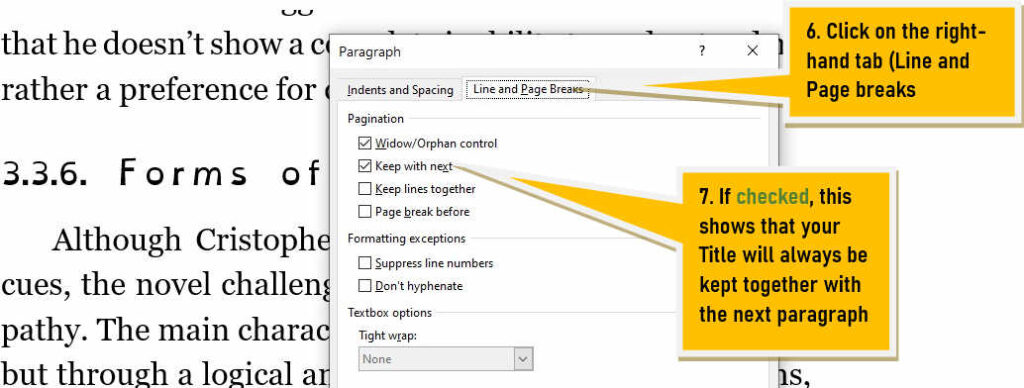
Now, remember this: Keep with Next means that the Title is kept together with any paragraph, regardless if that paragraph has text in it or is empty. Now, when students feel that there is not enough spacing after the Title, they will ”pump” a hard return (a new line) by hitting Enter. But what they just did is to create an empty paragraph. And now the title will stick together with and empty paragraph, but not with the real paragraph, the one containing text.
An this might result in what we call a Widow Title, i.e. a title that lies solitary at the very bottom of your page, because it was cut away from the text paragraph (that went on the next page), and only stick together with an empty paragraph.
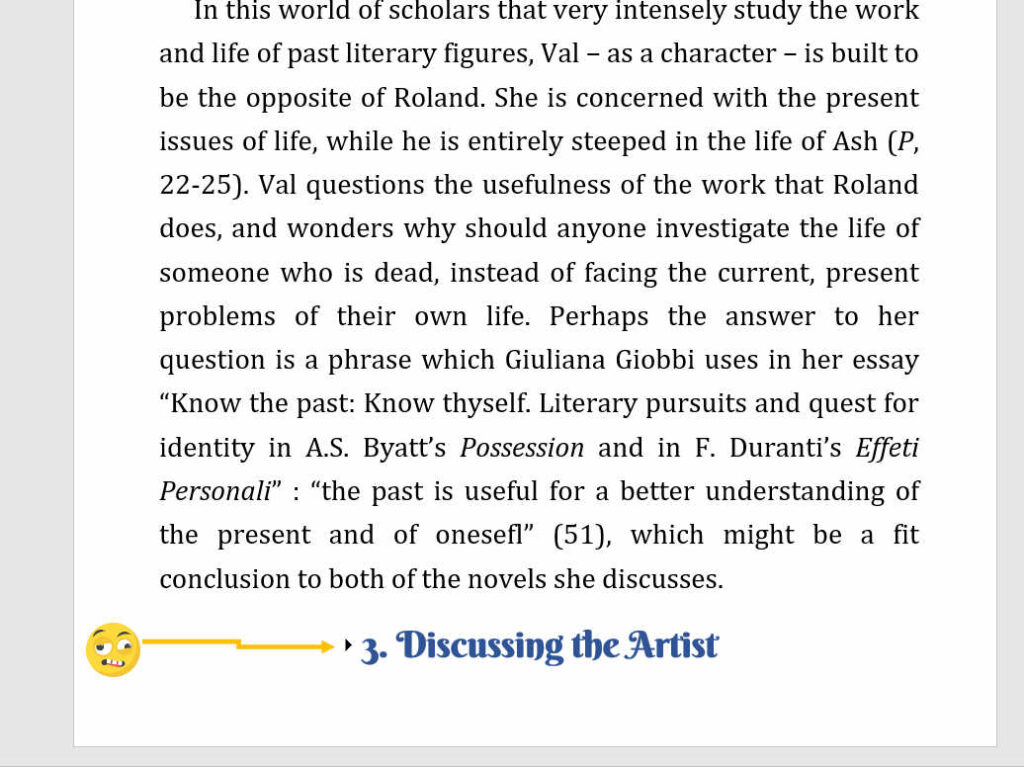
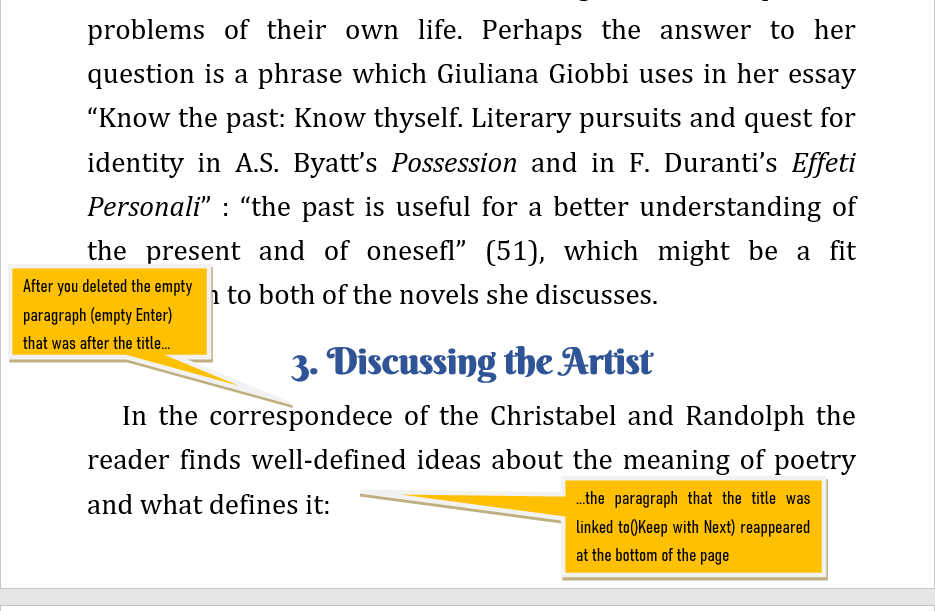
This is unbearably ugly! Now how to fix this? First, Reveal the Invisible characters, as explained above (#1), and then you will see that empty Hard return (Enter) code as a pilcrow sign: ¶. Delete it (not Backspace, Delete!). Your title is no longer widow, as it is rejoined with its paragraph, and if there is room enough they will stay on the present page:
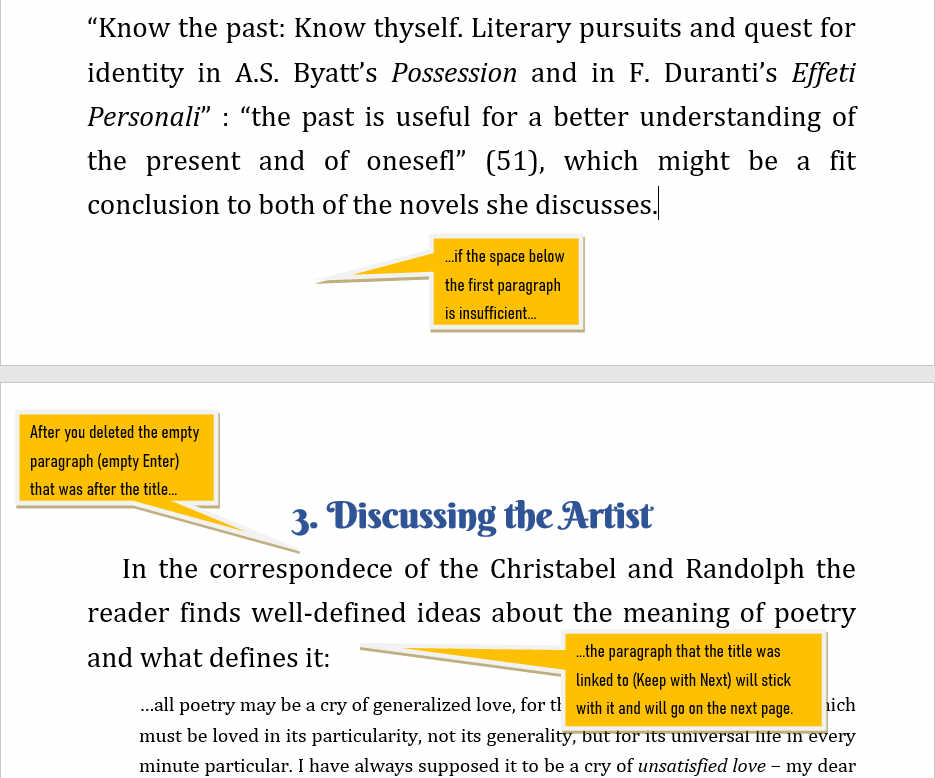
If there is not enough room on the page, the title+paragraph will go to the next page:
Well, initially nothing s wrong. Until it is. Here’s an example:
Those long web addresses can mess your entries in the Reference list. Here’s one attempt to solve it. It will look right only until the next edit:

This might look the right fix, but it is not. Why? (1) Since there is a pilcrow ¶ sign (enter) after vol 24, this is a new paragraph, and it has a bit of extra space above, unpleasant to the eye; (2) when you try to sort alphabetically the Reference list, this second paragraph will be sorted separately, under letter N, thus breaking away from Dowker.
Fix? Delete all those spaces and the ¶ sign and let the paragraph flow normally.
Some cannot make the difference between the hyphen and the dash, and between having or not having spaces around them. Please remember:
The short line is called:

THE HYPHEN
(liniuța de unire, cratima)
Has NO SPACE before nor after.
You use it:
- in compound words: Franco-German cooperation;
- in compound attributes: 25-year old, brown-haired girl,
The longer line is called:
THE DASH
And it serves two functions:
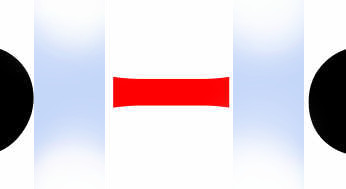
The DASH AS COMMA
or BRACKETS
Has SPACE before & after.
You use it:
- A pair of such dashes embed an explanation that would normally be between brackets, or commas:
- The man — John, or Jacob, whatever his name was — looked fierce.
- True in some writing – especially in UK – the Dash might work without spaces. We hate that.
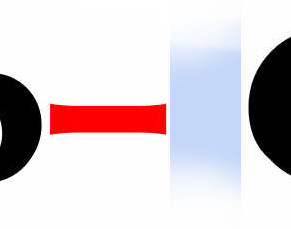
The DASH AS ELLIPSIS
alternative to … (puncte puncte)
Has SPACE only AFTER.
A single dash at the end of a sentence indicates that it is interrupted, paused:
She advanced and took a closer look and she saw— What did she see, in fact?
How to type a long dash?
In most Word settings, if you type two hyphens with spaces [ — ], they will be instantly transformed into a medium dash, called an en-dash.
If this does not work, type ALT-0150, and you will gent a nice en-dash.
Note: It is called en-dash because it has the length of an uppercase N. There is also an em-dash (the length of an M), but that is rarer.
You supervisor berated you for using straight quotes instead of curly quotes. What’s the whole fuss about?
There are two types of quotation marks:
Why don’t I get the right curly quotes when I type?
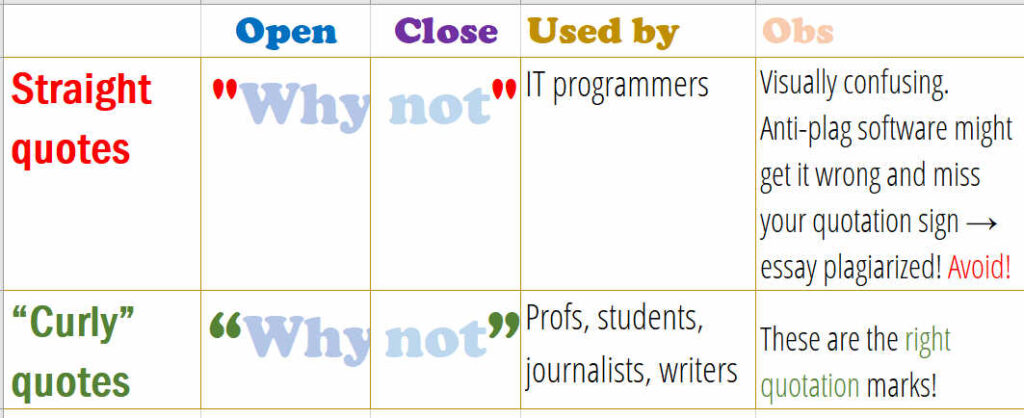
This is because of a setting in Word. That setting is part of Auto-Correct. Word recognizes when you typed a straight quote and convers it to curly quotes. Here where this setting is hidden:
This is how you do it:
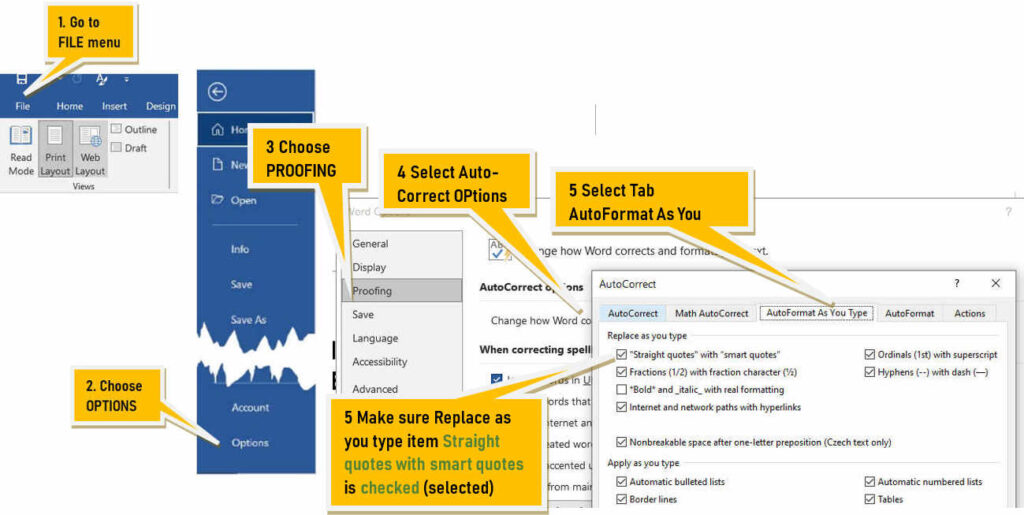
Now, it is well to do this before you start working in your document, because Word is actively replacing the straight quotes with curly quotes, as you type.
If, however, you detected straight quotes in an already typed document, then the as-you-type magic will not work! And you’ll have to do something else. Check the next FAQ, #6 ↓
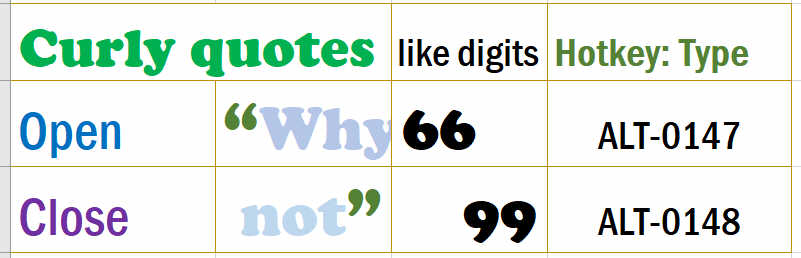
Mnemonic: First it is good to note that the curly quotes might look a bit like numbers 66 and 99.
To type the desired quotation mark, hold on the ALT key, and type in sequence 0147 and respectively 0148, without lifting the finger off Alt:
Many typing errors involve adding spaces where they shouldn’t be. As a result you might see quotation marks or closed brackets getting pushed onto the next line like this:
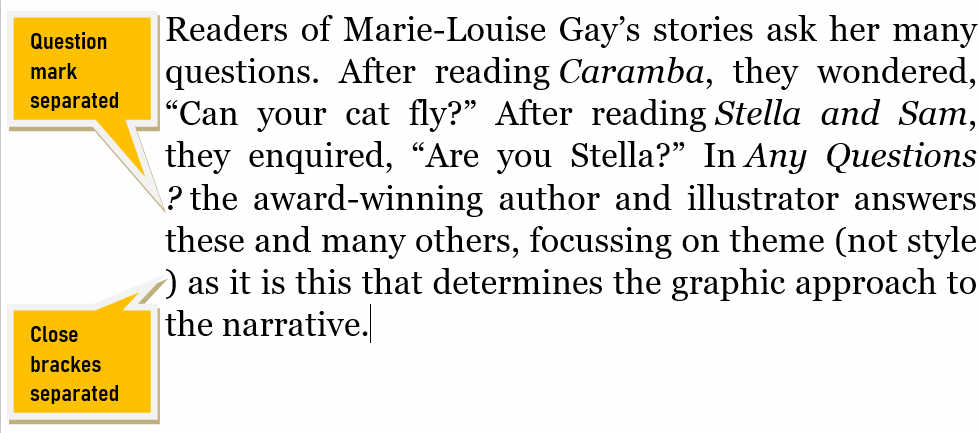
This is definitely ugly!
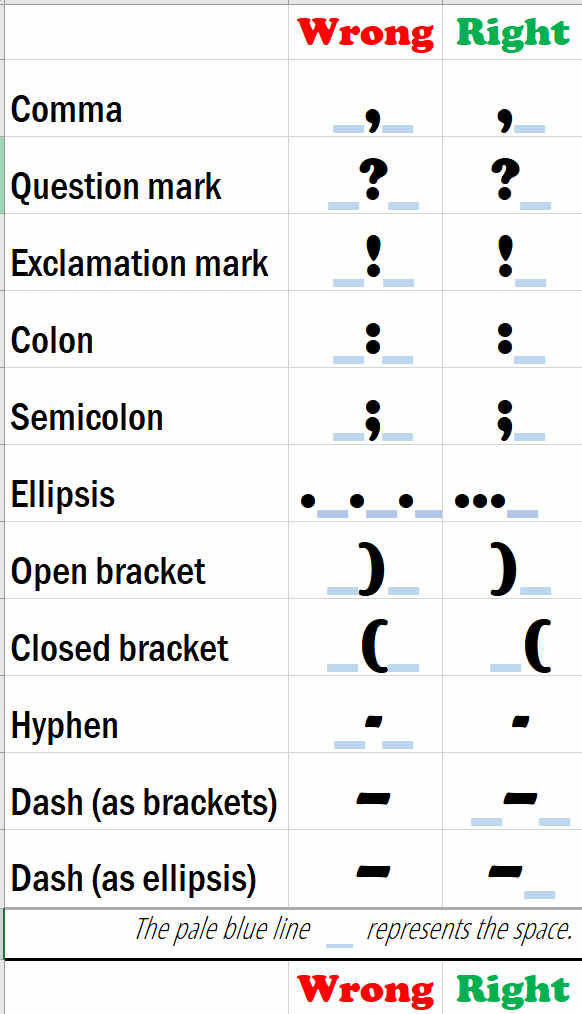
But how to avoid such incidents? When to type and when not to type space around punctuation signs. Here’s a list:
Remember these codes! The consist of holding ALT pressed, while typing the following numbers (only from the num pad on the right!):
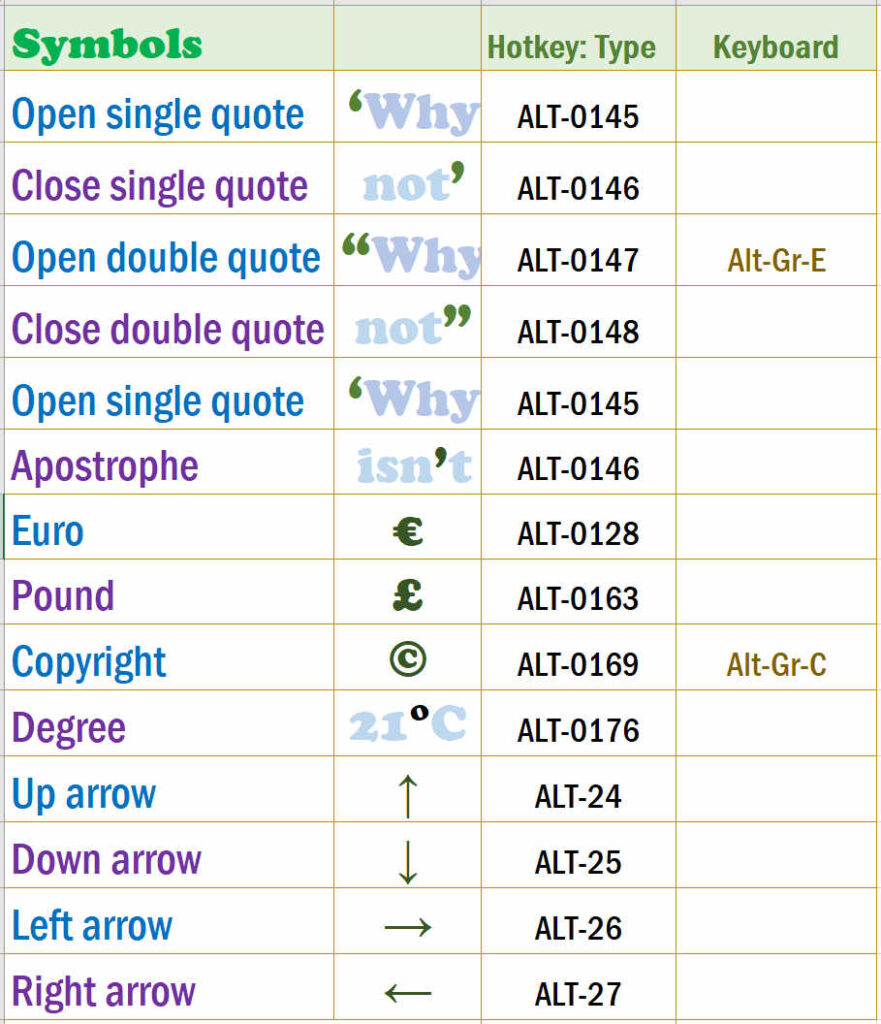
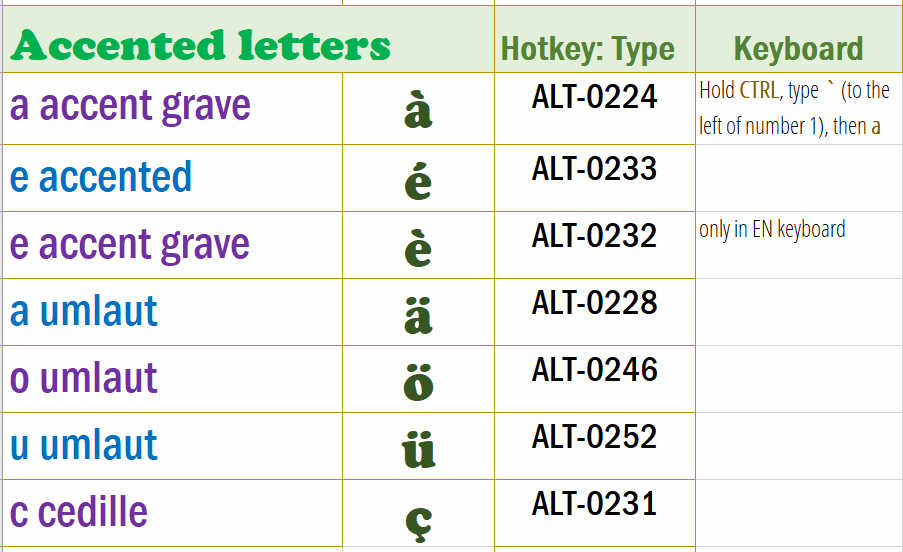
As for accented letters, you go the same way: ALT- number (from the num pad):