The best ebook reader app!
After downloading & testing & disliking & uninstalling tons of apps and software, I have at last found one ebook reader app that might be just perfect for you.
Ta daaam! Here comes…
Readest! 
Readest runs Cross platform
This program can run on almost any platform imaginable:

You have and android phone? Ok, Readest runs on it. You have an iPhone? It runs on iOS too. You want to use it on an Androit tablet? Tick!” iPad? Tick.
You’d like to read ebooks on the comfort of your laptop screen? Done, Readest has a Windows version.
You hate downloading and installing stuff on your laptop? No problem, Readest can run without any installation directly in your browser (Chrome, Firefox, Edge , Opera or Vivaldi).
Here are some of its functionalities:
The Library
Readest puts all your books in a library, that looks like this:
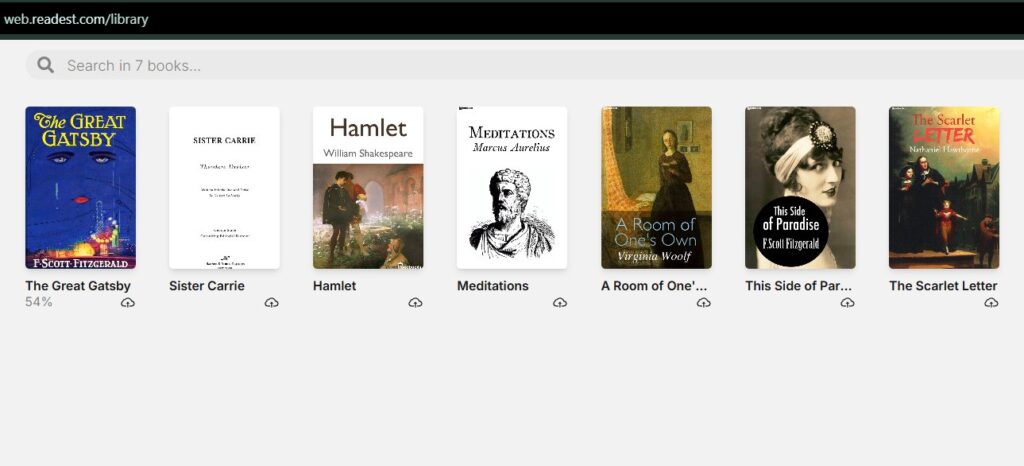
If you choose to allow Readest to automatically upload books to the cloud, then you will be able to access them on any device, be it phone, tablet or laptop.
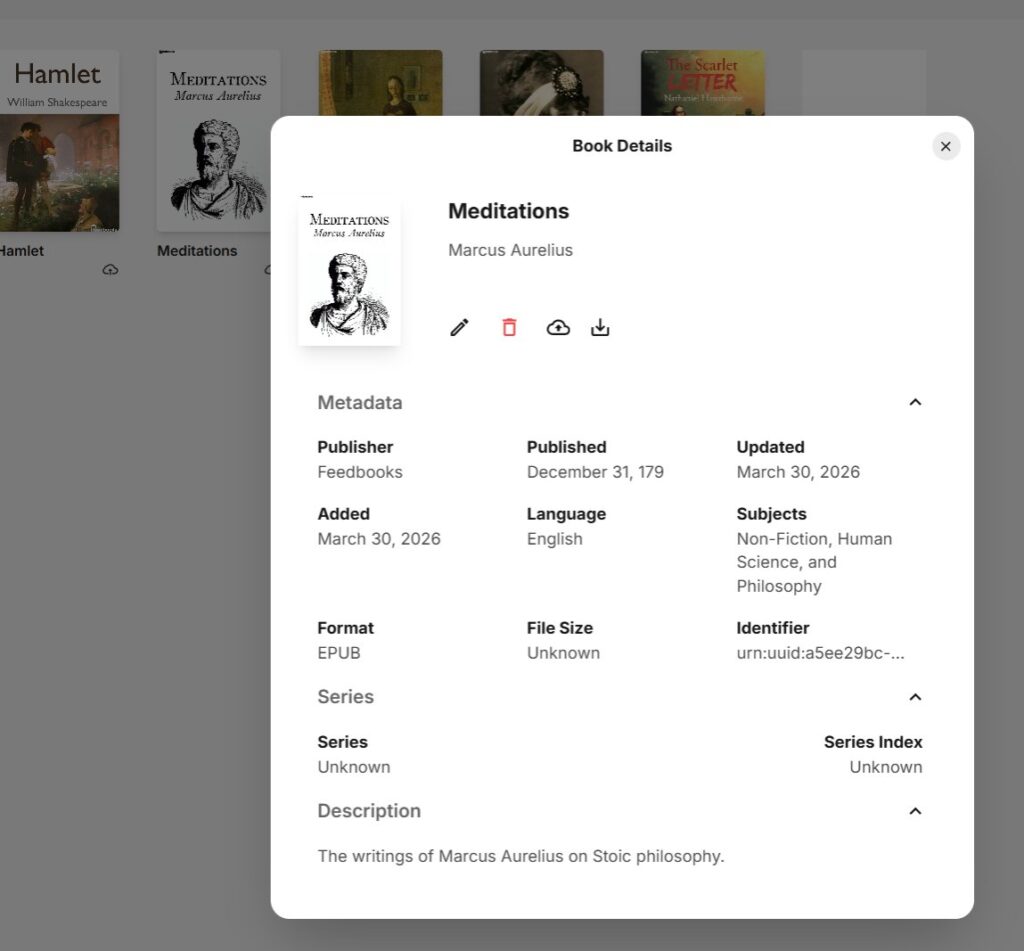
You can access book details:
The toolbar (menu)
Initially the Readest screen will look very empty, with no menus or anything.
The top menu
Just move your mouse (or finger) in the upper part of the screen and the Toolbar will appear:

- Switch sidebar on / off
- Search word or phrase
- Parallel read (allows you to read 2 documents in parallel)
- Pin / un pin sidebar (make the side bar stay next to the text, or float above; I recommend to keep it pinned)
- Go to Library
- Ad a bookmark to a whole page
- Enable whole text translation (I have not managed to test this)
- Highlight text; Search; Wiki; Translate; Text-to-speech
- Formatting: Font size, weight and style; margins; background.
- Make an annotation and also see your whole Notebook of annotations
- More options; including hotkeys.
Most functions can also be reached instantly as you select text.
The bottom menu
A second toolbar can be discovered if you move your mouse / finger to the bottom of the page:

- Table of Contents
- List of your Annotations
- List of your Bookmarks
- Previous chapter
- Previous page
- Back to previous place you visited in document
- Forward to next place
- Current page / Total pages
- Visual representation of pages you have read so far
- Text-to-speech
- Next page
- Next chapter
The Reading experience
You may change the font size from a button on the upper right:
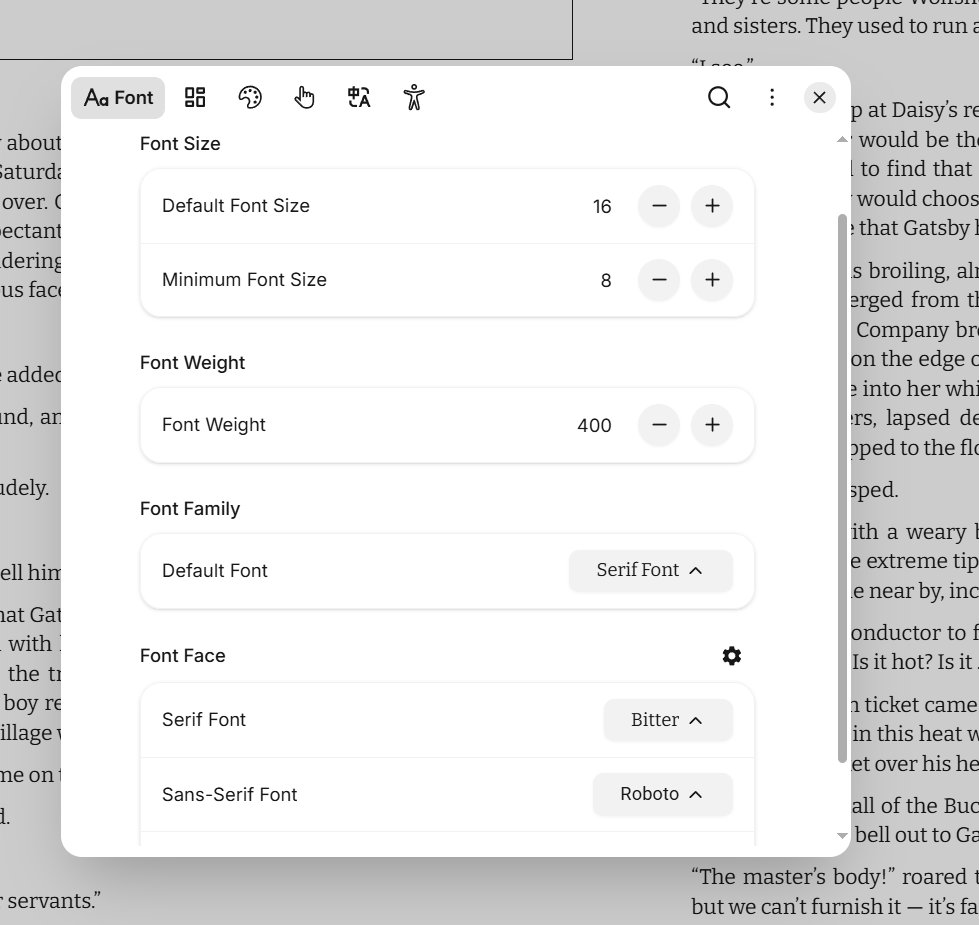
You can also change font size with CTRL-Mouse-scroll-wheel on a laptop, or a pinch-to-zoom on any touchscreen.
If you wish more visibility, you can make the font thicker by modifying the Font weight:


You may choose between a variety of fonts (Readest will select the fonts you have and show just those that are fit for reading a book), like this:





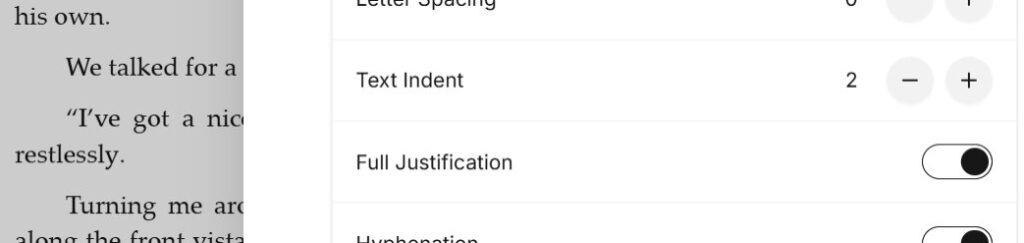
You can change the margins of the page, the space between the lines, and ther is even a setting to add that Text indent (aliniat nou cu retragerea primului rând) which is so often omitted from ebooks:
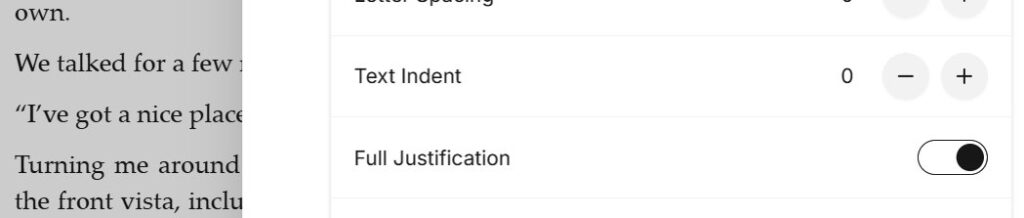
..can change to indent;
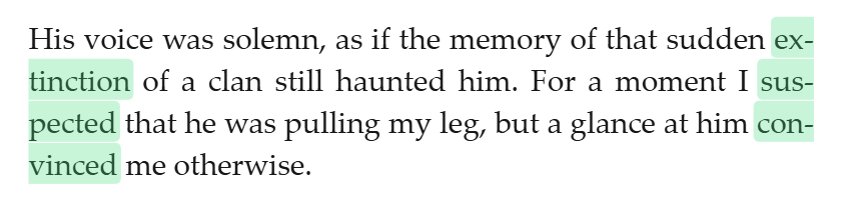
If your text has long words that look ugly at the end-of-lines, you may even turn on hyphenation, just like in a real book:
From non-hyphenated ↓
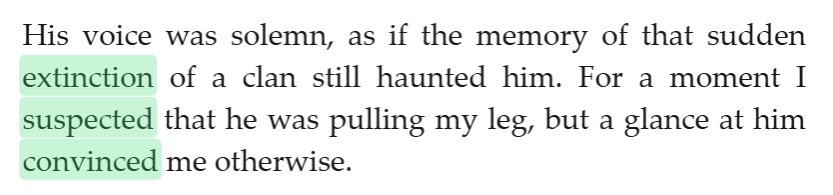
…to hyphenated ↓
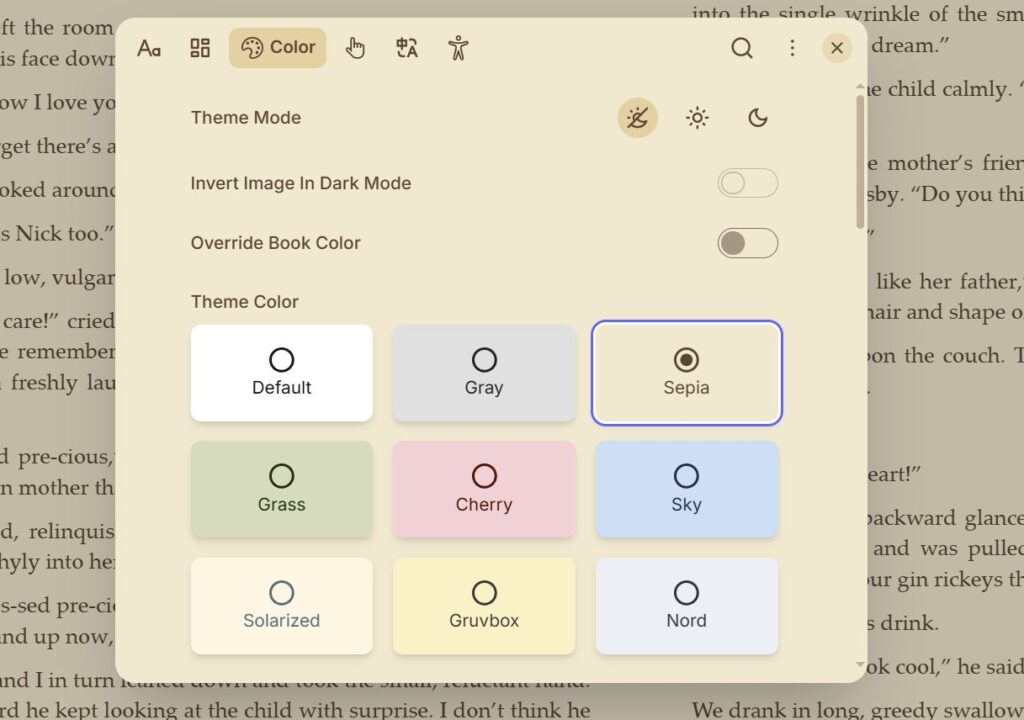
You can adjust to colour of your background page, changing it to sepia..
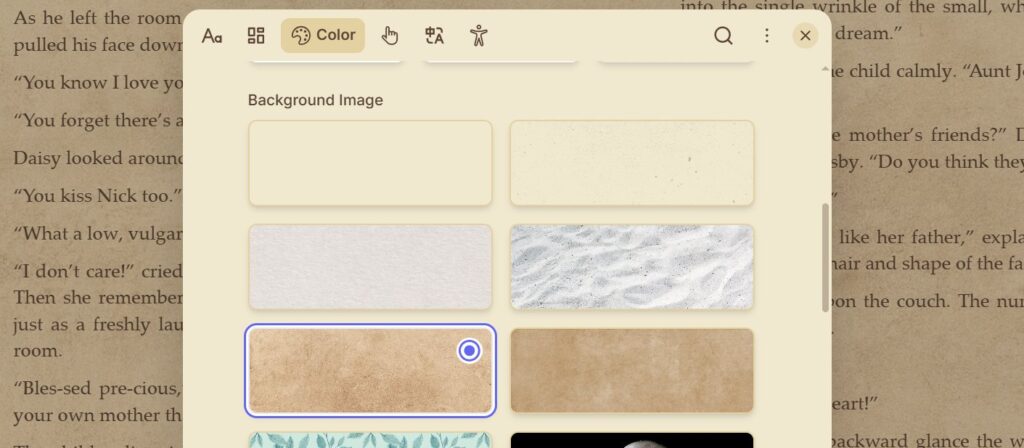
…or even toy with some textures, like this old paper:
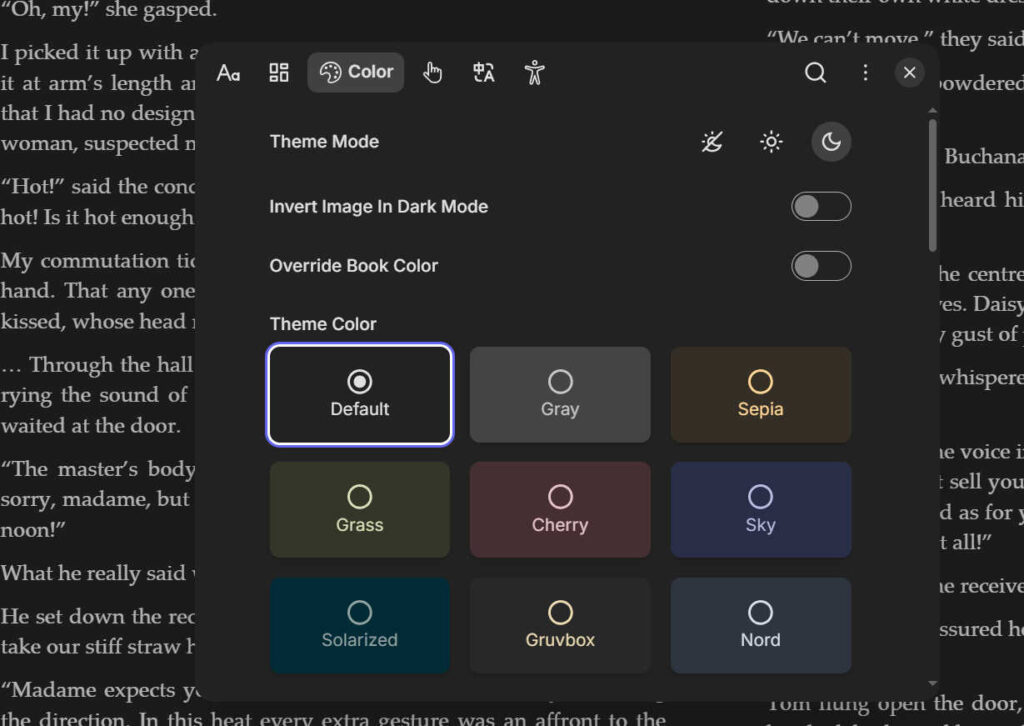
…and there is even a dark mode;
Navigation
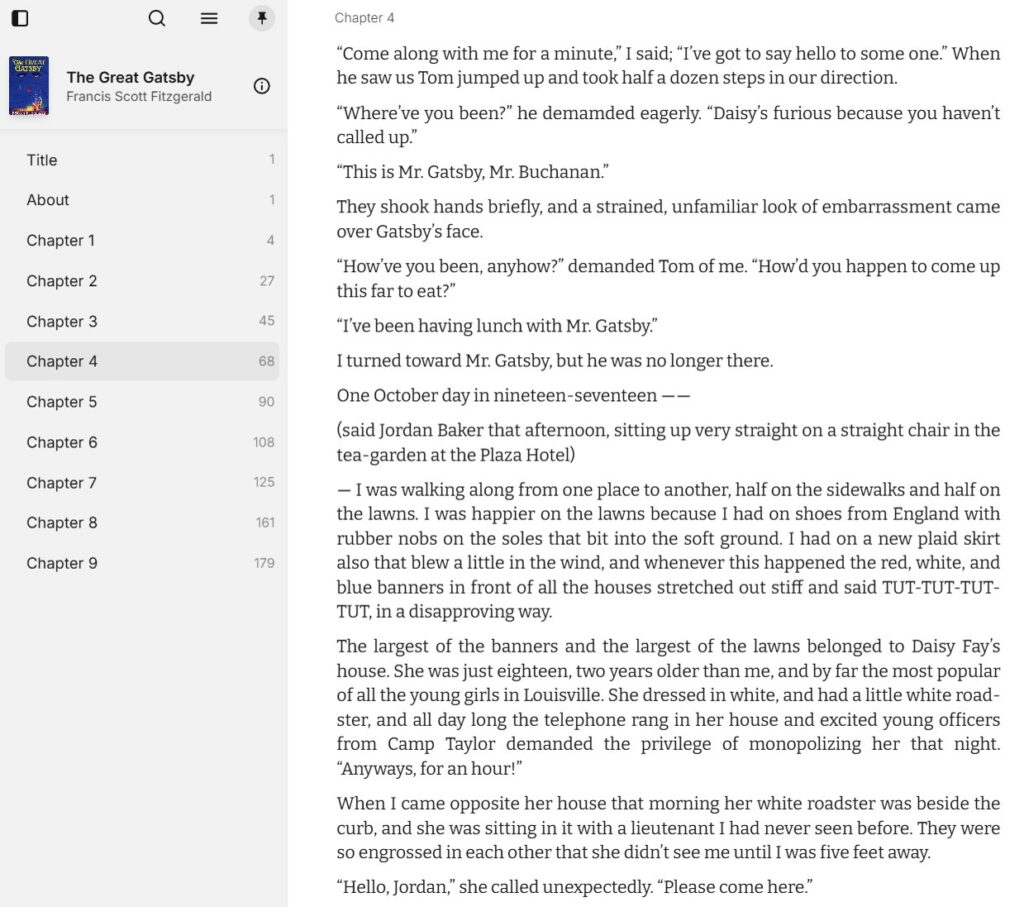
Navigation in the book is easy. You may view the Table of contents on your left hand without needing to leave the page:
Highlighting, underlining and annotating text
Highlighting text can go in a variety of ways: marker-like highlight, straight underline, wavy underline, and all in five colors:
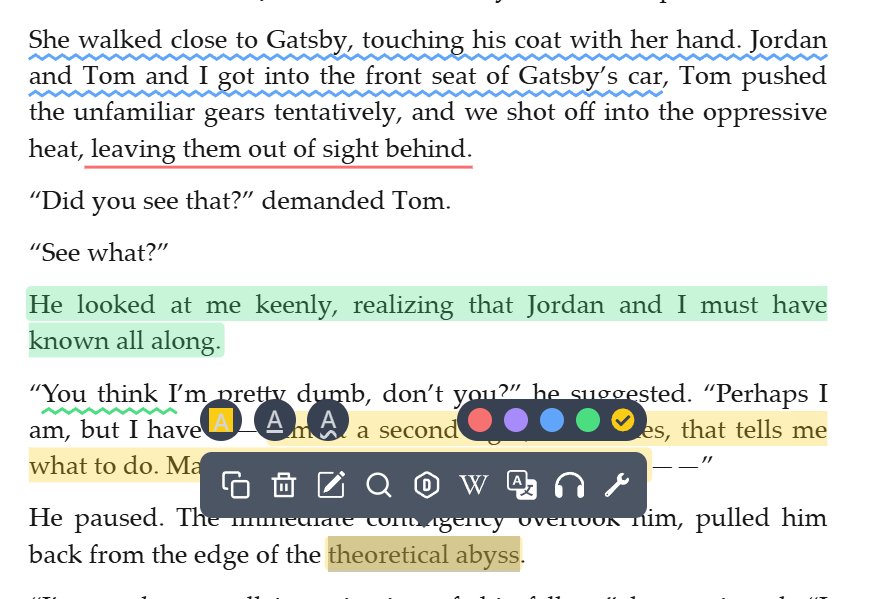
For instance you could decide to underline all descriptions in yellow, character presentations in red and symbols in blue.
Or if you are following certain themes, you may underline Transformations in red, Wordplay in blue, Ethical issues in Yellow, Environmental issues in green.
For any highlight you may add an annotation, that is, a personal comment.
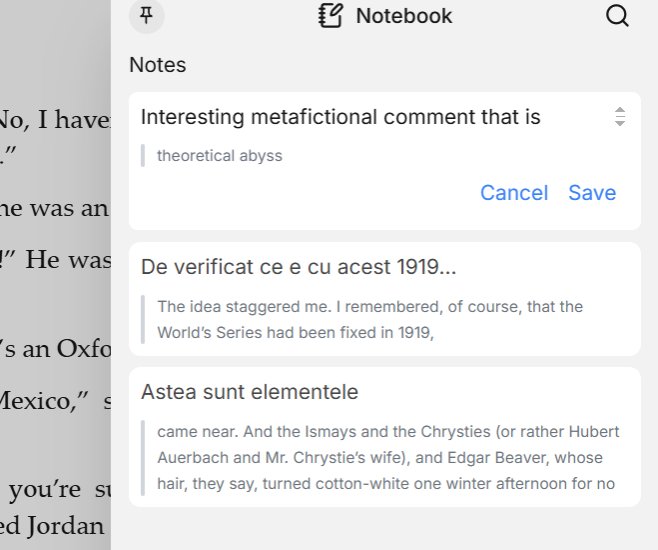
… which, as you can see here ↑, will be placed on a list.
All of your comments and highlights can be viewed (permanently if you wish) on a left-side panel.
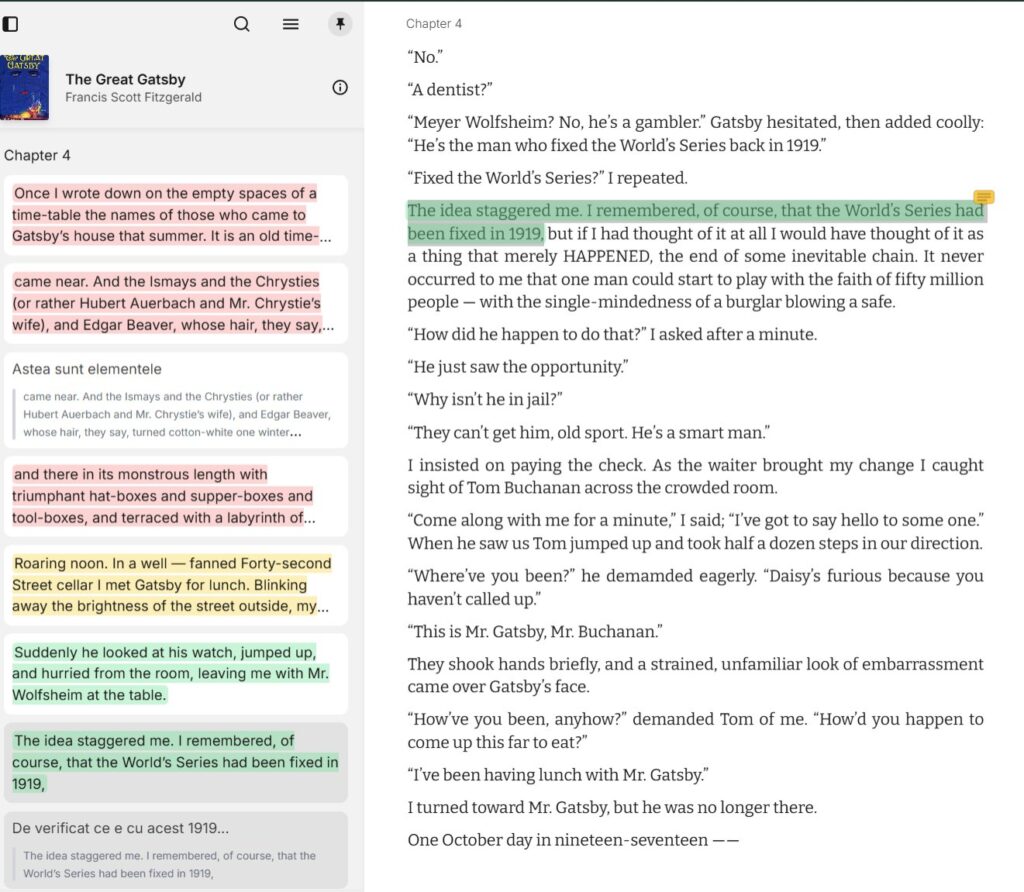
You will be shown the first 3 lines from each underlined text (which is more than the 1 line shown by other apps). If you wish to see more text, you might enlarge, or widen, the Annotation panel, like this:
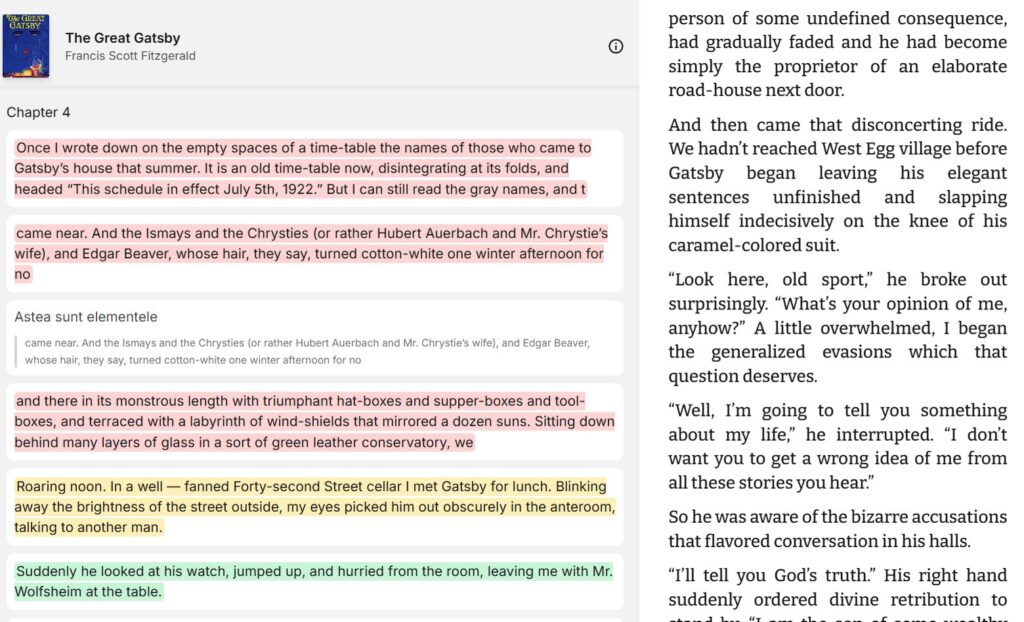
Clicking on any highlight or annotation will instantly take you to the page where it was taken from.
You can also export all your annotations, in case you wish to print them:
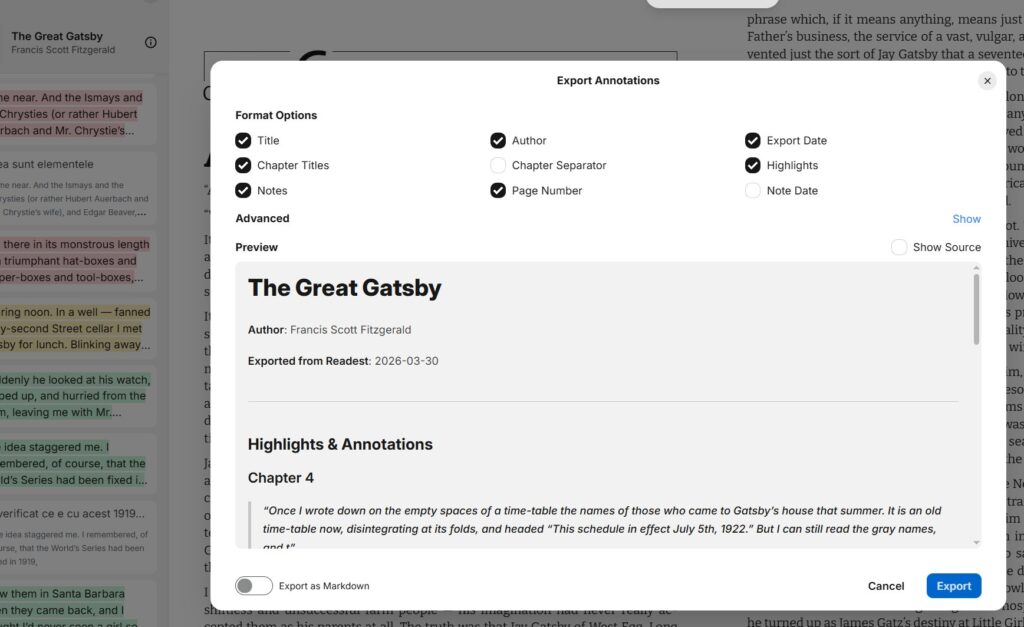
Look up a word in a dictionary
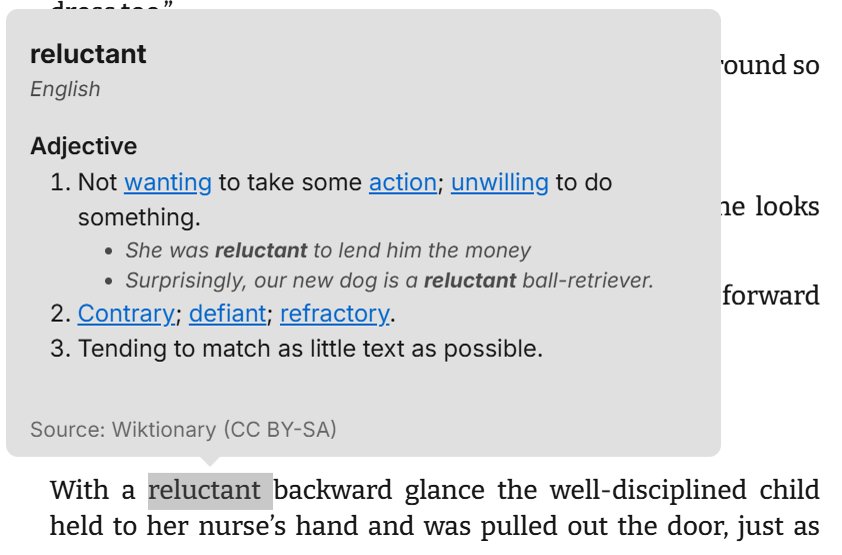
Readest connects with several dictionaries, as you can see here:
You can either use the Dictionary:
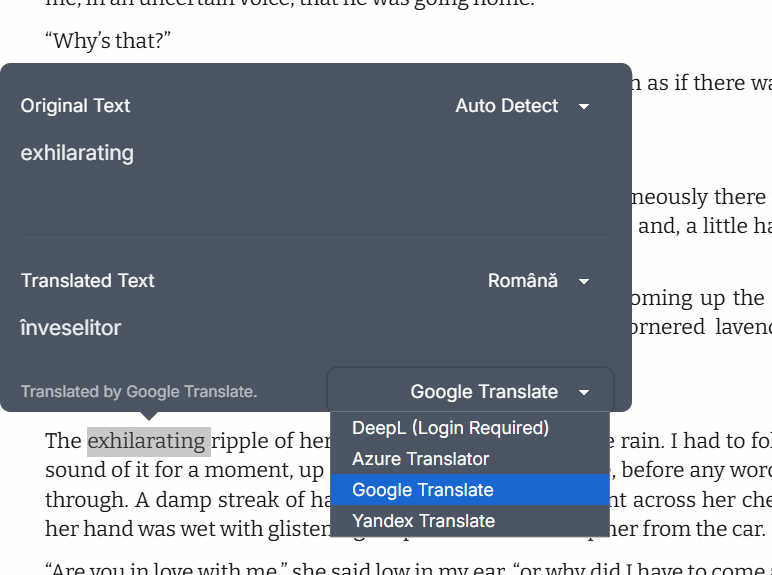
…or you may try your luck with one of the 4 translation engines:
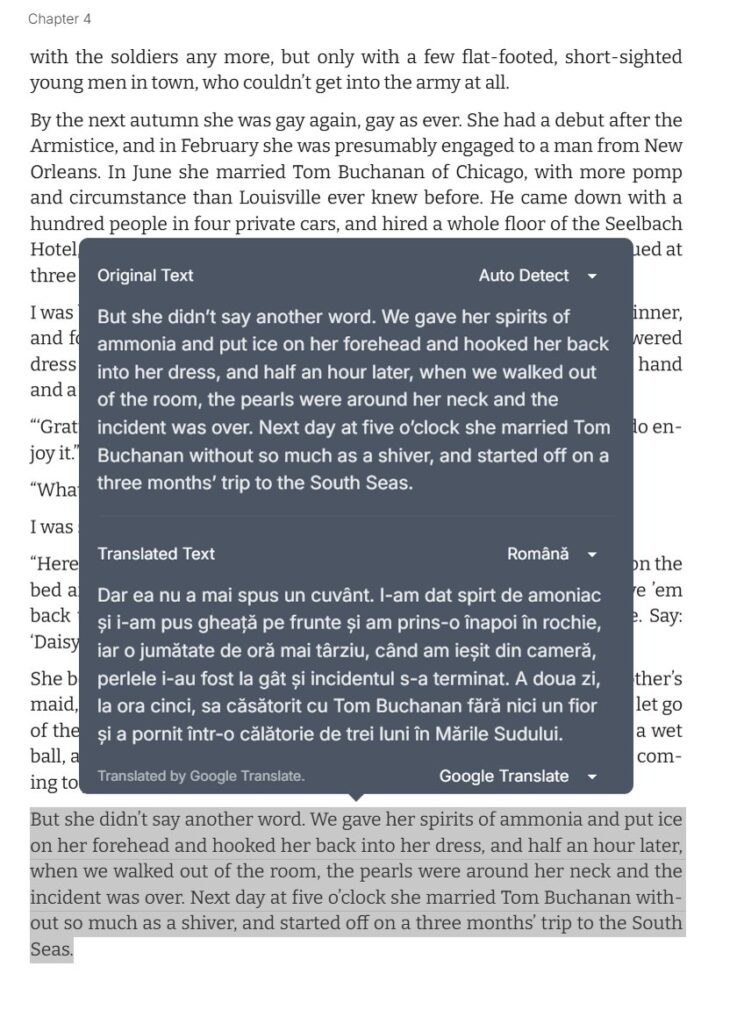
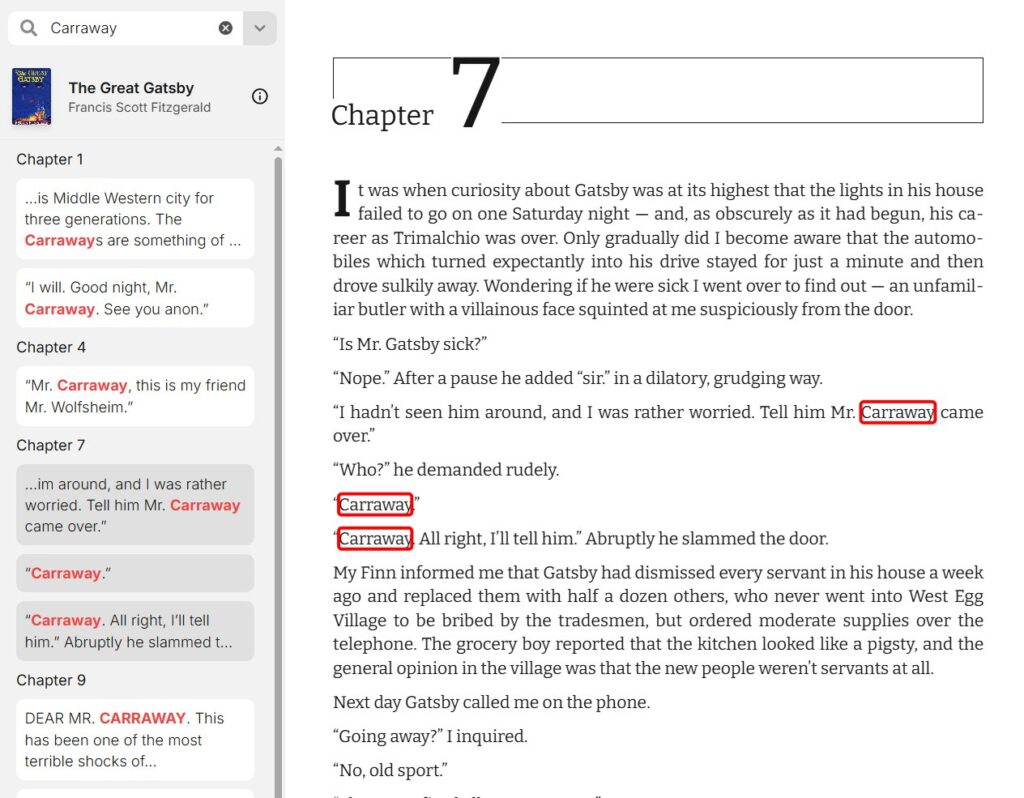
Search in the book
You can search in the book for any word. I find this feature very useful, especially to check who that character was, like here:
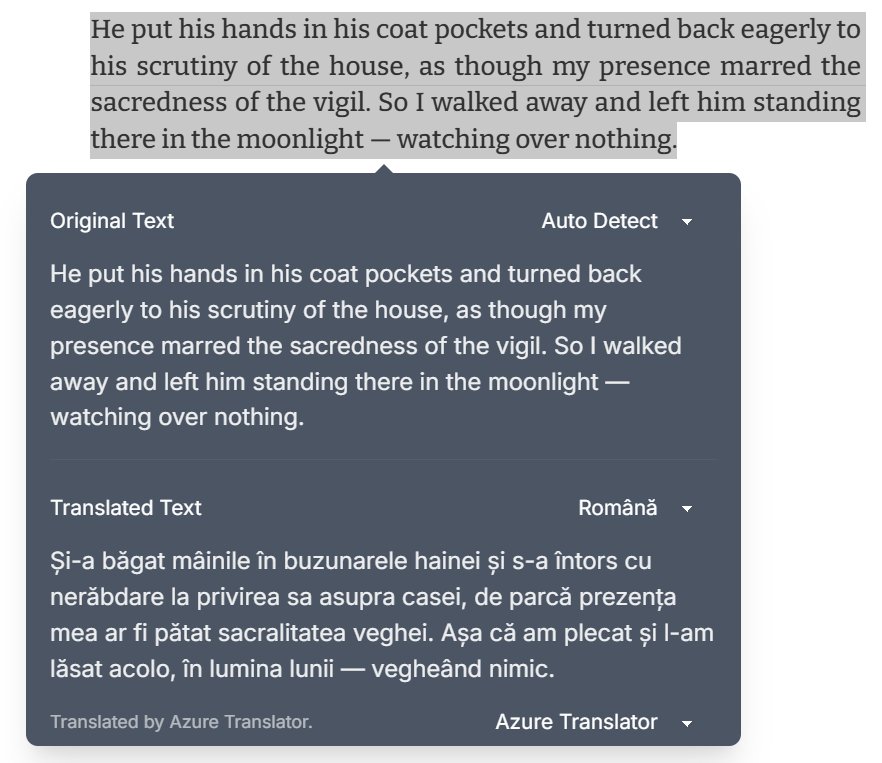
Translate a sentence of a paragraph
This is done instantly on one of the 4 engines. I like that the translation is given in the same screen as your text:
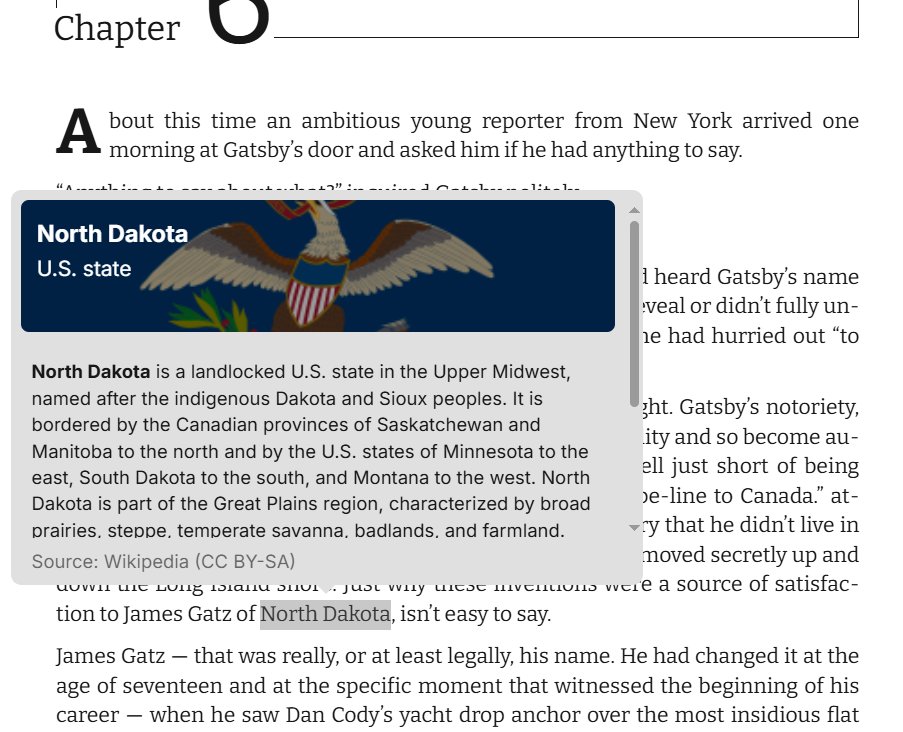
Checking out facts on Wiki
If you stumble upon a historical personality, an unknown place name, an exotic tree or fruit, a faraway tradition or a book title you’ve never herd of, just go check it on Wikipedia. And Readest knows you hate when this opens a new window, and put it in the same window as your own text.
Checking a place name:
Checking the name of a historical character:
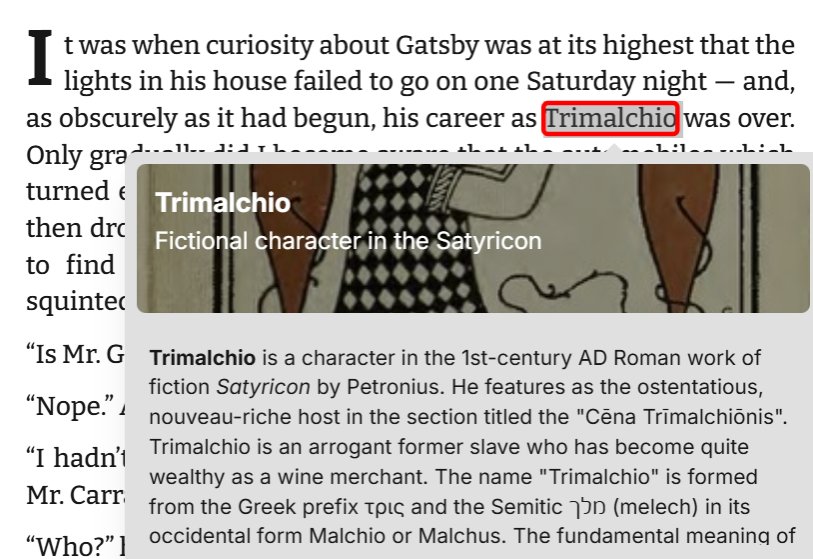
… and the name of an architectural style

Where to download
To run Readest directly on the web (you might need to register to use it), go to: https://web.readest.com/
To install Readest on a Windows computer, click on 
and on an Apple / Mac computer click on  → download file, → find it in Downloads → and then click on it to run the installer.
To install Readest on an Android phone or tablet, click on  , or for iPhone / iPad on
  → download file, find it in Downloads and then click on it to run the installer.
And remember:
This software is primarily designed for EPUB files. While it can also handle PDFs, it gets slower on those and some of its features might not work.
It’s an awesome app, the best of the 10 or 15 I have tries.
I hope you will enjoy enjoy using it as much as I do.